
The Admin Den Blog

Stop Losing Subscribers: A Small Business Guide to Newsletter Accessibility
Accessibility in your newsletters is a simple way to show all of your readers that they matter, not just the ones that think and work like you do. It's the basis of inclusion in your marketing.
In this post:
Why Does Accessibility Matter?
Accessibility isn’t just bonus points, it's estimated that 1 in 7 people in the UK (more than 15%) have some kind of neurodivergence and neurodivergent people often process information differently

So, how do you actually find out if your newsletter is accessible? What are the things you need to think about?
Headings & Structure
Using clear headings (like the one above) helps break up large pieces of text. But they shouldn't just be bold or larger text, they need to be a real 'heading'. Depending on what program you are using, you should be able to label text as a heading (H1, H2, H3 etc) or as body text (sometimes called 'paragraph'). This helps make your content more digestible and seem less overwhelming.
Many people use screen readers to help process information (where a programme reads out the text to them so they can digest it as audio instead), clear headings are needed to provide structure and allow skipping to relevant sections in long documents such as websites.
Fonts & Layout
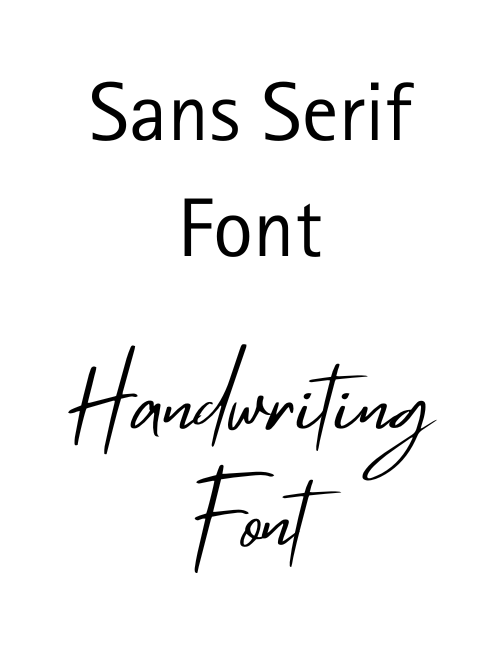
Your text should be at least 12 or 14pt, or 16 pixels in the body (this may vary depending on the font you pick), the letter spacing should be adequate to separate letters sufficiently, and left-aligned text is more digestible for those with dyslexia.
Colour Contrast
Dark text on light backgrounds is for better readability. Annoyingly, pale grey text is a default far too often but is hard to read. So white backgrounds and black text gives great contrast although research also shows that off white or pastel backgrounds cause less visual stress for dyslexic or those with colour vision deficiency.
Which of these is the easiest to read?

The only one of these images which passes the accessibility standards (WCAG AA) is the black text on yellow background, the others are too difficult to read.
You can check the colours of your background and your font with this contrast checker to see if they pass the accessibility standards, this link contrast checker is also good to check your links pass the same standards.
Links & Buttons
Accessible links and buttons should be descriptive for those using screen readers so people know what will happen when they follow the link:
Paragraphs & Language
Lots of text in one block can make your content hard to digest and may have readers tuning out! Breaking text down into short paragraphs with good spacing between them makes it more digestible (also, using real headings like we mentioned above!).
Clear simple language with linear points will help readers follow your messaging. And, if your content includes technical jargon (even if you think everyone knows what you're talking about), providing a simplified version or an explanation will always help. Sometimes, they may even know what you're saying, but can't place the meaning right now, let's not make life harder for each other!

Alt Text for Images
Alt text is a short written description of an image which is in the HTML code (hidden behind an image). It will show on the screen whenever a picture fails to load and is also read aloud by screen readers. It is a really important part of accessibility to ensure that users who can't see your picture for whatever reason, are not missing out on key information
Alt text is not an essay, it should be kept to 1-2 sentences (under 125-250 characters) and give the context of the image, not just what the subject of the image is.
If your image/graphic contains text, then make sure you include that text in the alt text.

Sometimes an image may be purely decorative so you can mark it as "decorative" or use an empty alt="" so screen readers skip it.
If your image is meant to be clickable, then, just like the text overlay, it is important to describe the action needed.
Emojis & Capitals
Screen readers are an essential tool to help many people consume information so it's important to understand how they read your text. Text that is in all capitals will be read out letter by letter rather than as a word. Using bold text is much better practice (remember that underlining should be reserved for links only to prevent confusion by accidentally presenting a word as clickable). In the right font, bold text will hold enough emphasis that it still meets the same needs.
Emojis are another one to be careful, I love an emoji so I'm definitely not telling you to avoid them completely, but to use them considerately. An emoji can add effect but screen readers read emojis out loud.

So that little celebration of emojis in your text has now become an alienating list instead, not quite the meaning you were going for, right?
Last Checks
Finished writing your newsletter, blog or other content and want to check you've made it as accessible as possible? Here are a few questions to check your content against before clicking publish or send:
- Can I read this on my phone?
- Does it still work if images don't load?
- Is anything essential hidden in images or layout?
Here is an accessibility checklist you can use to check your content, or there is a chrome extension if you prefer, that will scan your screen and highlight potential issues.
A Final Thought
Talk soon!
Alicia